

Audio Splitter Online
Split any audio into multiple segments with manual cuts, by number of equal parts, or by time.
Upload an audio file to start splitting it.
Chunk Mode
Download your audio:
Split Audio into Segments
With Audio Splitter, you can split any audio file into separate segments or clips by making manual cuts or automatically dividing the audio by number of parts or duration. You can download each clip as an MP3 or WAV file.
It’s a free tool that works directly in your browser, whether you’re using a computer, smartphone, or tablet.
How to Split Audio Files
Follow these steps:
- Upload an audio file: Audio Splitter supports a wide range of formats, including MP3, WAV, OGG, M4A, and more.
- Split manually or use Chunk Mode: Choose whether to make manual cuts at specific points or use Chunk Mode to divide the audio by duration or number of parts.
- Download your results: Choose to download individual clips or a ZIP file containing all of them in MP3 or WAV format. You can also download a single audio track containing only the active clips.
Key Controls and Features
Audio Splitter includes the following controls and features:
Editor and Player
Once you upload an audio file, you’ll access the editor, where you can make all the cuts needed to split your audio into clips or segments.
You can play the entire audio file or preview each clip individually, making it easy to fine-tune your cuts before downloading.
Split Button (Manual Splitter)
Split your audio by making manual cuts. To do this, click “Split (C)” or press the C key. Simply position the player where you want to make a cut and click the button or press the key. Each cut creates a new section, and a panel for each clip will appear in the lower section of the tool.
You can fine-tune each clip by dragging the cut point or editing it from the clip panels by entering the exact start and end time in minutes and seconds.
Chunk Mode (Automatic Splitter)
Use this mode to automatically split your audio into equal parts in one of the following ways:
- Parts: Split the audio into a specific number of clips, of equal-length.
- Duration: Split the audio by making a cut every X amount of time (minutes and/or seconds).
You can adjust the settings directly in the panel that appears after clicking the “Chunk Mode” button.
After applying the automatic split, you can drag and adjust the cuts or add new ones.
⚠️ Please note that applying automatic splitting will remove any cuts you have already made.
Enable or Disable Clips
You can disable any individual clip or segment using the On/Off button in its clip panel.
When you disable a clip, the player will skip it and it will not be included in your downloads.
Loop Playback
Click the global “Loop” button to enable loop playback of all active clips, allowing you to listen to them continuously.
You can also enable loop playback for individual clips using the Loop button in each clip’s panel. This can be useful when fine-tuning the start and end points of a cut.
Download Options
Once you’ve finished splitting your audio, you can choose from the following download options:
- Download individual clips: Click the MP3 or WAV button, depending on your preferred format, in the panel for each individual clip.
- Download a ZIP file: Download a compressed file containing all active clips in either MP3 or WAV format. Access this option through the “Download” button.
- Download an audio track: Create a single MP3 or WAV file containing all active clips continuously, skipping any clips you’ve disabled. Access this option through the “Download” button.
Privacy
Your privacy is fully protected: nothing leaves your device. The audio files you upload remain only in your browser and are stored temporarily. Once you close the window, everything is deleted.
More Online Audio Tools
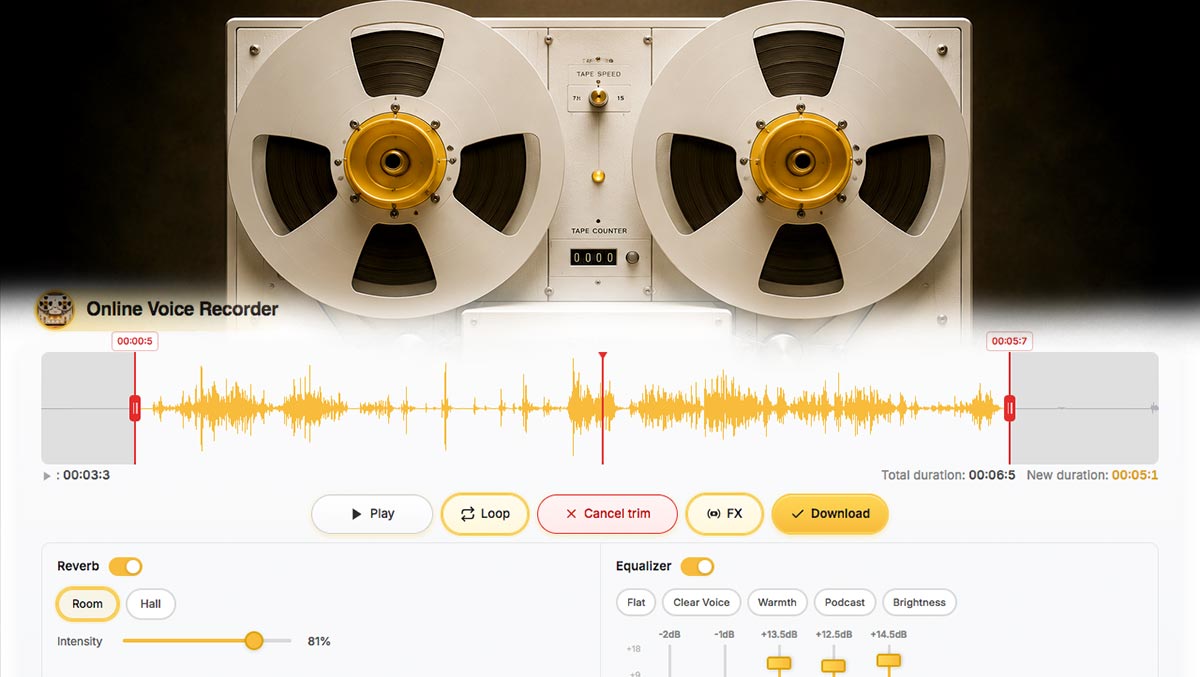
Discover more virtual instruments and audio tools at DJFuturo Tools.
To be notified as soon as each new instrument or tool is released: Subscribe for free.