

Online Audio Equalizer
Equalize any audio online with a parametric equalizer or a 10-band graphic equalizer.
Upload an audio file to equalize it.
Green clip: there is headroom, the level is below the limit.
Yellow clip: at the limit, but acceptable.
Red clip: over the limit, with risk of distortion when downloading.
You are over 0 dB: the audio may distort when downloaded. Lower “Output” or press “Set maximum safe level”.
Finds the highest volume without distortion: lowers the Output if the audio exceeds 0 dB and raises it if there is headroom.
Download your audio:
Free Audio Equalizer
Equalize any audio file directly in your browser using a parametric equalizer or a 10-band graphic equalizer. Adjust individual frequencies and hear the changes in real time while watching the visual spectrum analyzer respond to your adjustments.
Make additional edits and download your finished audio for free.
How to Equalize Audio Online
Follow these simple steps:
- Upload an audio file: The EQ supports a wide range of audio formats, including MP3, WAV, M4A, OGG, and more.
- Adjust the equalizer settings: Choose between the parametric and graphic equalizers to shape your sound. You can also make additional edits, such as trimming audio, applying fade-ins and fade-outs, and adjusting the output level.
- Download your audio: Export your equalized audio in MP3, WAV, or M4A format.
Key Controls and Features
This online audio EQ includes the following controls and features:
Audio Editor and Player
Once you upload your audio, you’ll have access to the audio editor and player, where you can play your track and apply all the edits described below.
Preview your EQ adjustments, trims, and fades in real time during playback.
Parametric Equalizer
The parametric equalizer offers greater flexibility and customization. Move frequency bands across the spectrum, choose different filter types, and adjust the bandwidth (Q factor) to control how each filter affects the EQ curve. It features 8 bands:
- Bands 1 and 8: High-pass and low-pass filters at either end of the frequency spectrum.
- Bands 2 and 7: Peak or shelf filters, ideal for controlling the low and high ends of the frequency spectrum.
- Bands 3 through 6: Peak filters for fine-tuning the low-midrange, midrange, and upper-midrange frequencies.
10-Band Graphic Equalizer
The graphic equalizer features 10 fixed frequency bands for adjusting your sound. Each band has a fader that lets you boost or cut the gain in decibels (dB) for its corresponding frequency range.
Both the parametric and graphic EQs let you hear your changes in real time and see them reflected in the visual spectrum analyzer.
Output Level and Optimization
Use this section to adjust the output volume level after equalization. You can set it manually using the slider or automatically by clicking “Set maximum safe level” (recommended).
Setting the output level helps prevent distortion when processing and downloading your track. Click the “i” button for more information.
Audio Trimming
You can trim your audio track directly in the editor. Click the “Trim” button to display two draggable markers that define the section you want to keep. A trimming panel will also appear, allowing you to fine-tune the selection more precisely.
Fade-In and Fade-Out Effects
Add fade-in and fade-out effects to your audio track and adjust their duration by dragging the controls. A dedicated panel will appear for each effect, allowing you to fine-tune their settings or disable them.
Download Your Audio
Once your audio is ready, you can download it for free by clicking the “Download” button.
- A progress bar will appear while your audio is processed. Processing time depends on the length and file size of your track.
When processing is complete, you can download your audio in MP3, WAV, or M4A format (if supported by your browser). If your audio may distort because the output exceeds 0.0 dB, you’ll receive a warning so you can correct the level before downloading.
Privacy
Your privacy is fully protected: your files never leave your device. Uploaded audio files remain temporarily in your browser and are not sent to a server. Once you close the browser window, all session data is cleared.
More Audio Tools
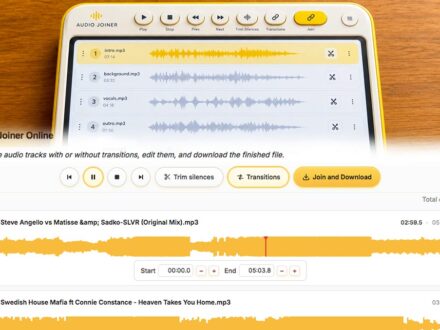

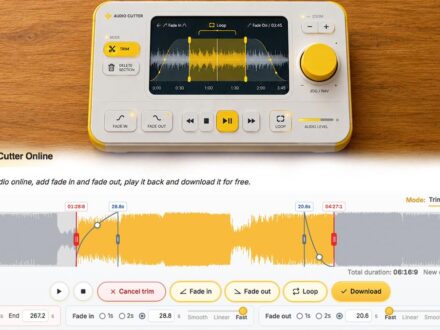
Explore more audio tools and virtual instruments at DJFuturo Tools.
Want to be the first to know when new instruments and tools are released? Subscribe for free.